
Essential IT Package
*Exclusive to businesses with Microsoft 365 Business.
*Limited-time offer.
Got Microsoft 365, but... hard to set up? new staff email setup? old staff left? email on multiple devices? costly Full-time IT labour? paying too much for IT services? no time for IT admin? no proper protection setup? no security monitoring? missing Outlook emails? files or shared data missing? user access confusing? messy account setup? backup missing?
Essential IT Package
6 Services Included
-
User Admin Services Included
Say goodbye to messy Microsoft account setup. For businesses using Microsoft 365 Business, we handle basic admin work such as staff onboarding, offboarding, and user account updates. Smooth like a ninja, keeping things simple and giving you peace of mind.
Microsoft 365 Access Management

Do you know
For many businesses, Microsoft 365 starts with company email in Outlook. But it can do far more than that. It also brings together shared files, Teams, OneDrive, calendars, Office apps, Copilot and more to help your team work smarter and get more done. For example, your team can work on the same Word, Excel or PowerPoint file at the same time, and Teams can help organise meetings with features like AI meeting summaries and highlighted action points. But these tools only work well when the setup and access are built on the right foundation, such as where files are stored and who can access them.
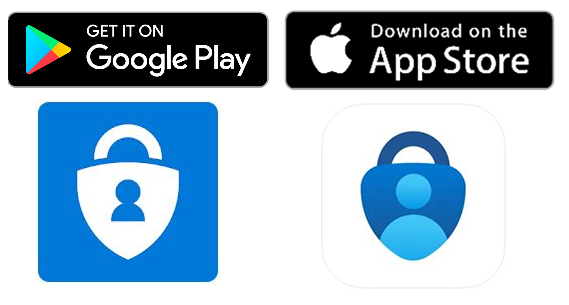
By the way, do you still remember that 2-factor authenticator app on your smartphone? Yes, the blue one with the lock logo, not the colourful Google one. That little app is often connected to some of the highest-level security checks in Microsoft 365 for company apps and data. A lot of businesses think removing a staff member is just about deleting the user account, but if that part is not handled properly, it can still create risk or trouble later. And this is only one small example. In real life, there is usually a much longer checklist when an employee leaves than most people imagine.

What we do
We handle the user side of Microsoft 365 setup and basic admin work, so your team can use the right tools, accounts, mailboxes, and shared workspaces without the whole setup becoming messy over time:
- assigning licences, roles, and access levels
- setting up mailbox-related settings
- managing who can access shared files, Teams, and other work areas
- updating access when someone changes role
- removing or cleaning up access when someone leaves.

How it works
Stay with peace of mind by just sending the staff update to us. Whether it is a new starter, a role change, or an employee leaving, once we have the details, we handle the Microsoft 365 access checklist properly in the background. That can include setting up email and licences for new users, or cleaning up sessions, access, and account settings when someone leaves, with a proper checklist process to help make sure nothing important is missed.

Why you need it
A lot of small and medium businesses do not have the time to keep handling Microsoft 365 user changes carefully every week, and that is exactly where admin mess often starts. This is especially true for businesses with fewer than 20 staff, where it usually does not make sense to hire a full-time IT person just to manage this kind of work.
Even if a business already has someone in IT, they may be stronger in other areas and still miss small but important Microsoft 365 access details. That is why it can make more sense to leave it with a team that deals with these changes regularly as part of day-to-day work.
If access is rushed, unclear, or not cleaned up properly:
- a new staff member may not be ready on day one
- someone may not be able to use Outlook properly across devices
- shared files may be too open, too limited, or just confusing
- old accounts, sessions, or authentication methods may be left in a risky state
- the business ends up paying for tools people are not using properly

Example 1
They need company email in Outlook, access to the right files, Teams, calendars, and the Microsoft 365 tools they will use from day one. They may also need to work on shared Word, Excel, or PowerPoint files with the rest of the team. If that setup is not handled properly, the first day can easily turn into chasing logins, missing permissions, and waiting around for access. Access Management helps get that foundation set up properly, so the person can start working instead of getting stuck on admin problems.

Example 2
Someone leaves the business.
Deleting the user account is often only one small part of the job. There may still be active sessions, shared access, leftover licences, mailbox handling, or authentication links tied to company data and systems. If that clean-up is missed, it can create unnecessary risk or trouble later. This service helps make sure this is handled as a proper offboarding checklist, not a rushed last-minute job.

Summary
This is about making sure the right people can use the right Microsoft 365 tools at the right time, and that access is set up and cleaned up properly, because getting the foundation right from the start helps everything else run better.
-
Microsoft 365 Backup Included
Backup for Email, OneDrive, Teams and SharePoint. Helps protect your business emails, files, shared documents, and team data so they are easier to recover if something is deleted, lost, or changed by mistake.
Microsoft 365 Backup
Do you know
A lot of businesses think Microsoft 365 being “in the cloud” means everything is already backed up properly. But in real life, cloud access and proper backup are not exactly the same thing. Important Outlook emails, attachments, Teams content, OneDrive files, SharePoint documents, and OneNote data can still be deleted, overwritten, damaged by malware, or simply become hard to recover when someone urgently needs them back. This service is built around protecting that day-to-day Microsoft 365 business data and making recovery much easier when something goes wrong.
When we are talking about backup, you may only think about just storage the files. But in real life, it can be an important Outlook email thread, a client attachment, a missing Teams item, or a shared document that someone changed at the wrong time. This service can protect Microsoft Teams, Exchange Online, OneNote, OneDrive for Business, and SharePoint Online, with detailed point-in-time and cross-tenant recovery options, plus the ability to preview and search backup content before restoring it.
And one more thing many people miss: backup is not only about having a copy somewhere. It is also about being able to actually find what you need, restore only the right item, and do it quickly enough to avoid business disruption. That is why features like quick backup search, granular restore, backup status monitoring, strong encryption, frequent backup scheduling, and AI-assisted recovery guidance matter in real business use, not just on a spec list.
What we do
We handle the Microsoft 365 backup side of the work so your business data is easier to protect, search, monitor, and recover when needed.
That can include:
• backing up Microsoft 365 data across Exchange, Teams, OneDrive, SharePoint, and OneNote
• protecting specific data with point-in-time recovery and selective restore
• restoring only what is needed, such as emails, files, sites, contacts, or attachments
• searching backup content quickly by subject, sender, recipient, date, partial words, site item, or file name
• using group-based protection so coverage stays more consistent when staff join, change roles, or leave
• monitoring backup health with reports, notifications, widgets, and critical alerts
• protecting backup data with AES-256 encryption and frequent backup schedules, up to six times per day
• using AI-assisted recovery features to help support cleaner and more confident restore decisions.
How it works
In most cases, we handle the work behind the screen so you can have peace of mind. If anything happens, simply send the recovery request or backup issue to us, and we will handle the rest.
That can include searching the backup, identifying the right restore point, previewing the content if needed, and recovering only the required item instead of rolling everything back. It can also include keeping backup schedules in place, watching backup status and alerts, and using recovery features that help restore data faster, more cleanly, and with less guesswork when time matters.
Why you need it
Microsoft 365’s built-in cloud does not mean your data is fully protected. Even Microsoft’s Services Agreement, Section 6(b), says disruptions and outages can happen, and recommends regularly backing up your content and data.
We support this service with an enterprise-grade backup and recovery platform designed for detailed search, selective restore, strong encryption, and more frequent backup cycles. Just as important, we already have experience handling thousands of business cases in this area, so you are not relying on trial and error. For most smaller businesses, this also costs far less than hiring a full-time IT person, while giving you a more specialised backup and recovery process.
With features like quick search, point-in-time recovery, selective restore, monitoring, and more frequent backups, a stressful interruption can become a much more manageable job.
If backup is missing or not managed properly:
• an important Outlook email or attachment may be much harder to recover
• a shared file may be overwritten, deleted, or lost in a sync issue
• downtime can drag on while someone tries to work out what happened
• backup coverage may become inconsistent when staff changes are not handled properly
• the business may have the tools, but still not have a clear recovery path when something goes wrong
Example 1
An important Outlook email goes missing.
It could be a customer approval, an invoice thread, a supplier attachment, or a compliance-related email deleted by mistake. Instead of treating that like a major disaster, this service makes it easier to search backup data quickly and restore only the item you need, without rolling back everything else. Enhanced mailbox search can look by subject, sender, recipient, date, partial wording, and more, which is exactly the kind of practical feature that matters when someone needs the answer fast.
Example 2
A shared file or Teams document gets overwritten or disappears.
Your staff may be working across OneDrive, SharePoint, Teams, Word, Excel, and PowerPoint every day. If the wrong version is saved or something important is removed, work can stall quickly. This service gives a clearer recovery path with selective restore, point-in-time recovery, preview/search tools, and more frequent backup points, so the business can get moving again faster instead of wasting hours trying to rebuild what was lost. AI-assisted recovery features can also help support safer restore choices when there is pressure to recover data quickly.
Summary
This is about making sure your Microsoft 365 business data is not only stored, but properly backed up, searchable, and recoverable, so emails, attachments, files, and shared work can be brought back with less downtime when something goes wrong.
-
Unlimited Cloud Backup & Recovery Included
Protects your Microsoft 365 data with unlimited cloud backup storage and gives your business more control when restoring lost emails, files, or shared data.
Unlimited Cloud Backup & Recovery
Do you know
Microsoft 365 Backup and Unlimited Cloud Backup & Recovery may sound similar, but they are not quite the same thing. Microsoft 365 Backup is the core backup layer for your emails, files, Teams data and shared content. Unlimited Cloud Backup & Recovery adds a bigger recovery layer on top: more backup storage, more flexibility when restoring data, and better support as your Microsoft 365 environment grows over time.
What we do
We help protect your Microsoft 365 data in the cloud and manage the backup environment behind it. This includes broader backup coverage, quick search, item-level recovery, automatic protection for newly added users or sites, plus monitoring and reporting so it is easier to see what is happening and act when something needs attention.
How it works
Your Microsoft 365 data is backed up cloud to cloud into a separate backup environment with unlimited storage included. From there, recovery is not just about restoring everything at once. Specific emails, files, folders, sites or other data can be searched and restored more precisely, which helps save time and reduces disruption. As your environment changes, backup coverage can also keep up more easily without creating another manual job in the background.
Why you need it
The main difference is simple: having a backup copy is one thing, but having enough storage and enough recovery control to make that backup useful is another. This service becomes more valuable as your data keeps growing, especially when older content needs to be found quickly or a deleted item needs to be restored without dragging out downtime. It is about giving the business more room, more flexibility and a better path to recovery when something goes wrong.
Example 1
A team member deletes a SharePoint folder, loses an email chain, or accidentally overwrites a file that still matters. A basic backup story may only mean there is a copy somewhere. This service gives you more control than that, so you can search faster and recover only what is needed instead of rolling back more than necessary.
Example 2
Your business keeps adding users, shared folders, Teams data and sites. Over time, backup can quietly become larger and harder to manage. With unlimited cloud backup storage and a more flexible recovery setup, it becomes easier to keep up as the environment grows without turning backup admin into another full-time task.
Summary
If Microsoft 365 Backup is the foundation, Unlimited Cloud Backup & Recovery is the broader recovery layer behind it. It gives your business more storage headroom, more precise recovery options and a more practical way to restore data as Microsoft 365 grows over time.
-
Email Security Included
Helps reduce the risk of phishing, malware, spam, and other suspicious emails reaching your team and causing bigger business problems.
Email Security
Do you know
One of your team members may receive an email with a subject line like
“Our AI Generated Summary is Here!”
It appears to come from Microsoft:
From: Microsoft <support@rnicrosoft.com>
Subject: Your Productivity Summary is Ready
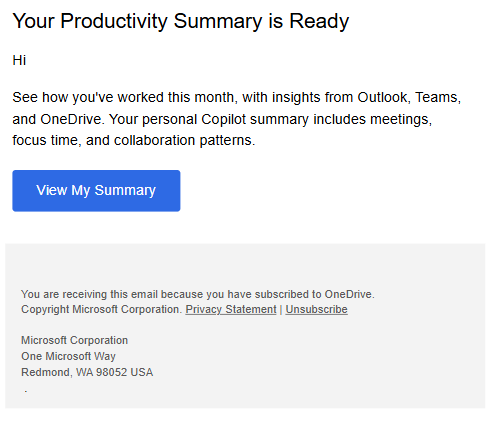
Can you spot what’s wrong in 10 seconds?
Bingo time: the sender address is fake. It may look like microsoft.com at first glance, but it actually says rnicrosoft.com. The attacker is using “r” + “n” to imitate the letter “m”, which is a common trick in phishing emails. It is subtle, easy to miss, and exactly the kind of detail busy staff may not catch in time.
If someone clicks the link, the damage may already be underway. Login details can be stolen, bank payments may be redirected, customer information could be exposed, and the wider business may be put at risk. This kind of attack has become far more common in recent years, especially since COVID, and many of them are designed to look almost legitimate.
What we do
We put a real-time defence layer in front of your email environment to stop modern email-borne attacks before they hit your users’ inboxes.
That includes AI-powered phishing analysis, image recognition, URL reputation checks, machine-learning validation around SPF, DKIM, DMARC and IP reputation, anti-evasion technology that recursively unpacks hidden content, threat intelligence feeds, signature-based malware detection, anomaly detection and next-generation dynamic scanning for advanced threats.
In simple words: this is not just a spam filter. It is a multi-layered protection stack built to catch phishing, spoofing, impersonation, business email compromise, account takeover, malware, zero-days and APTs in seconds, across both inbound and outbound traffic.
How it works
Every email, file and URL is analysed before delivery, not just sampled after the fact. The first layer applies anti-spam and reputation-based filtering. From there, anti-evasion technology breaks content down into smaller components and checks each one separately, including hidden URLs, files and embedded payloads. Payload-free impersonation attacks are assessed with machine learning, IP reputation and authentication checks such as SPF, DKIM and DMARC. Known malware is blocked by signature-based engines, while newer or harder-to-detect threats are picked up by static and dynamic analysis.
For more advanced attacks, the platform uses next-generation dynamic scanning with CPU-level analysis to identify exploit-stage behaviour before malware is released.
It also scans 100% of traffic in real time, covers inbound and outbound mail, and connects directly with Microsoft 365 through API-based deployment rather than the heavier setup often associated with older email gateway models.
Native Microsoft 365 protection is useful, but modern phishing, spoofing, account takeover and zero-day attacks often need a faster and deeper screening layer in front of the inbox.
“This Email Security Service” vs Native Microsoft 365 Protection
*Mobile tip: swipe left or right to view the full comparison table.
| Functionality | This Email Security Layer | Native Microsoft 365 |
|---|---|---|
| Detection speed | < 30 sec | 5-20 min |
| Detection accuracy | Best-in-class | Good |
| Threat coverage | Best-in-class | Good |
| Detection of malicious URLs | Best-in-class | Average |
| Detection of zero-days | Best-in-class | Limited |
| Prevention of APTs | Included | N/A |
| Prevention of ATO | Included | Add-on |
| Anti-evasion | Included | Below average |
| Incident response services | Included | N/A |
Why you need it
Yes, Microsoft 365 and Outlook already come with built-in email protection, but modern email attacks have become far more convincing and much harder to spot. Many now use look-alike domains, impersonation, hidden malicious links, compromised accounts, and carefully timed wording to get past basic filters and catch busy staff off guard.
What we provide is an extra security layer on top of that existing protection. It adds real-time scanning across inbound and outbound email, along with deeper inspection using AI-powered phishing detection, image recognition, URL and IP reputation checks, SPF, DKIM and DMARC validation, anti-evasion analysis, anomaly detection, threat intelligence, and advanced dynamic analysis for threats such as zero-days and APTs.
In simple terms, Microsoft 365 helps with the basics, and this service provides a stronger layer for the more advanced threats that can still slip through. That gives your business a better chance of stopping stolen logins, fake payment requests, customer data leaks, and the wider disruption that can start from one convincing email.
Example 1
A finance staff member receives what looks like a normal Microsoft notification or urgent payment request. The sender name looks right. The logo looks right. The wording feels familiar. But underneath, the message may be using a look-alike domain, a spoofed identity, a malicious URL or a payload-free impersonation trick designed to bypass a quick human glance. This is where the extra layers matter: image recognition, URL reputation engines, anti-spoofing checks, IP reputation and machine-learning analysis help spot what looks legitimate on the surface but is not.
Example 2
A compromised account starts sending suspicious messages to customers, suppliers or other staff, or a file arrives carrying a newer exploit that traditional filters do not recognise yet. In that case, the risk is no longer just one bad email. Real-time scanning across inbound and outbound traffic, anomaly detection for account takeover, anti-evasion unpacking, and CPU-level dynamic analysis for zero-days and APTs help catch the issue earlier, contain it faster and reduce the chance of it spreading further across the business.
Summary
Backup helps you recover after the damage. Email security is there to reduce the chance of that damage happening in the first place. The difference here is speed, depth and coverage: 100% traffic scanned in real time, layered detection for both known and unknown threats, and technology designed to catch the kinds of phishing, impersonation and zero-day attacks that now look almost legitimate. That is the real value of adding a stronger email security layer on top of Microsoft 365.
-
Collaboration Security Included
Adds protection for Microsoft Teams and other collaboration tools, helping keep shared communication and teamwork data safer.
Collaboration Security
Do you know
Most people think of email first when they think about cyber risk. But these days, a lot of business activity happens in Teams, SharePoint and OneDrive: shared files, links, chats, quick uploads, internal comments, and collaboration with other staff. That also means a bad file, a malicious link, or exposed data can spread inside the business long before anyone notices. This service is built to watch those collaboration areas more closely, not just the inbox.
What we do
We add a real-time protection layer across your Microsoft 365 collaboration apps, with a focus on files, links and chats in Teams, SharePoint and OneDrive. That includes AI-driven scanning for malware, malicious links, hidden threats and data exposure risks, plus incident response support to help investigate and deal with threats faster when something needs attention.
How it works
Shared content is analysed in real time across your collaboration environment rather than waiting for someone to spot a problem manually. The service uses AI-powered scanning, dynamic file and URL scanning, and a deeper level of analysis that includes CPU-level dynamic analysis for content-based attacks. It is designed to pick up malicious files, harmful links and hidden threats early, before they spread further through shared folders, chats or cloud collaboration workflows.
This Service vs Microsoft Defender and Microsoft’s Built-in Security
*Mobile tip: swipe left or right to view the full comparison table.
| Functionality | This Service | Microsoft Defender | Microsoft’s Built-in Security |
|---|---|---|---|
| Detection accuracy | Advanced | Limited | N/A |
| Level of analysis | CPU-level dynamic analysis | Sandbox | Signature based |
| Detection speed | Near real time | 5-20 minutes | < 30 seconds |
| Dynamic file and URL scanning | Available | — | — |
| 24/7 incident response managed service | Available 24/7 | — | — |
| Deployment | Multi-tenant single-click deployments | Individual deployment needs | Onboard |
| Policy settings | Flexible | Cumbersome administration | Preset |
Why you need it
Microsoft 365 already has built-in security, but collaboration apps have become a bigger target as more work moves through shared files, links and chat-based workflows. This extra layer helps cover that gap by adding broader protection for the parts of Microsoft 365 where staff now collaborate every day. In simple terms: email security protects the inbox, while collaboration security helps protect what happens after people start sharing, chatting and working inside the platform.
Example 1
A staff member drops a file into a Teams chat or a SharePoint folder, and it looks harmless at first glance. But hidden inside could be malware, a harmful link, or a threat designed to move further once someone opens or shares it again. This service is there to analyse that content in real time and help stop it before it spreads across the team.
Example 2
A malicious link is shared internally in a chat or through OneDrive, or a file with hidden content starts moving between users during a busy workday. Because the service focuses on real-time scanning, dynamic analysis and incident response support, it gives your business a better chance of catching that activity early instead of finding out only after the damage has already travelled further.
Summary
Collaboration Security is about protecting the places where modern teams actually work: Teams, SharePoint and OneDrive. It adds real-time AI-driven inspection for files, links and chats, helps reduce the spread of malware, phishing and hidden threats, and gives your Microsoft 365 environment a stronger layer of protection beyond email alone.
-
Security Posture Management Included
Microsoft 365 Security Health Check. Helps identify risky settings, security gaps, and areas for improvement so your Microsoft 365 setup stays better protected over time.
Security Posture Management
Do you know
Microsoft 365 is not something you set once and forget. Users change, roles change, settings change, and access patterns change. Over time, that can create quiet gaps in the background that are hard to spot without regular review. Security Posture Management is designed to keep a closer eye on those moving parts and make it easier to pick up issues earlier.
What we do
We keep watch over sign-ins, user activity, data access, security settings, and unusual changes across your Microsoft 365 environment. We also pick up alerts when new risks or user-related changes appear, help follow up on what needs attention, and provide reporting that shows findings and trends over time.
How it works
First, the environment is reviewed against a structured security baseline so gaps and weak points are easier to identify. From there, ongoing monitoring helps track new risks and changes over time. If something needs action, remediation can be handled manually or automatically depending on the issue. Reporting can then be generated to show what was found and where attention was needed.
Why you need it
Many small and medium businesses already have Microsoft 365 in place, but they do not always have time to keep checking settings, access, and user-related changes in the background. This service helps reduce that pressure by making the environment more visible and easier to review over time. It is especially useful where staff changes, access changes, and day-to-day admin changes can quietly create risk without anyone noticing straight away.
Example 1
Someone changes a permission, a user account behaves differently, or sign-in activity starts looking unusual. Nothing may seem wrong at first, but those small shifts can sometimes be the early sign of a bigger issue. Security Posture Management helps bring that change into view sooner, so it can be checked before it becomes harder to deal with.
Example 2
A team member leaves or changes role, and the environment keeps moving quickly. Even if access management is handled elsewhere in the package, this layer still helps by keeping visibility over changes, sign-ins, and settings so small oversights are easier to catch. The underlying service also includes onboarding and offboarding-related actions, but for your public page I would only mention that as a light support point, not the main story here.
Summary
This is about helping keep Microsoft 365 under better control over time, not just checking it once and hoping it stays that way.
Do you know?

Who This Plan Is Best For

Using Microsoft 365
For small to medium businesses using M365 every day, such as Business Basic, Business Standard, Business Premium, and Enterprise plans.
Day-to-Day Operations
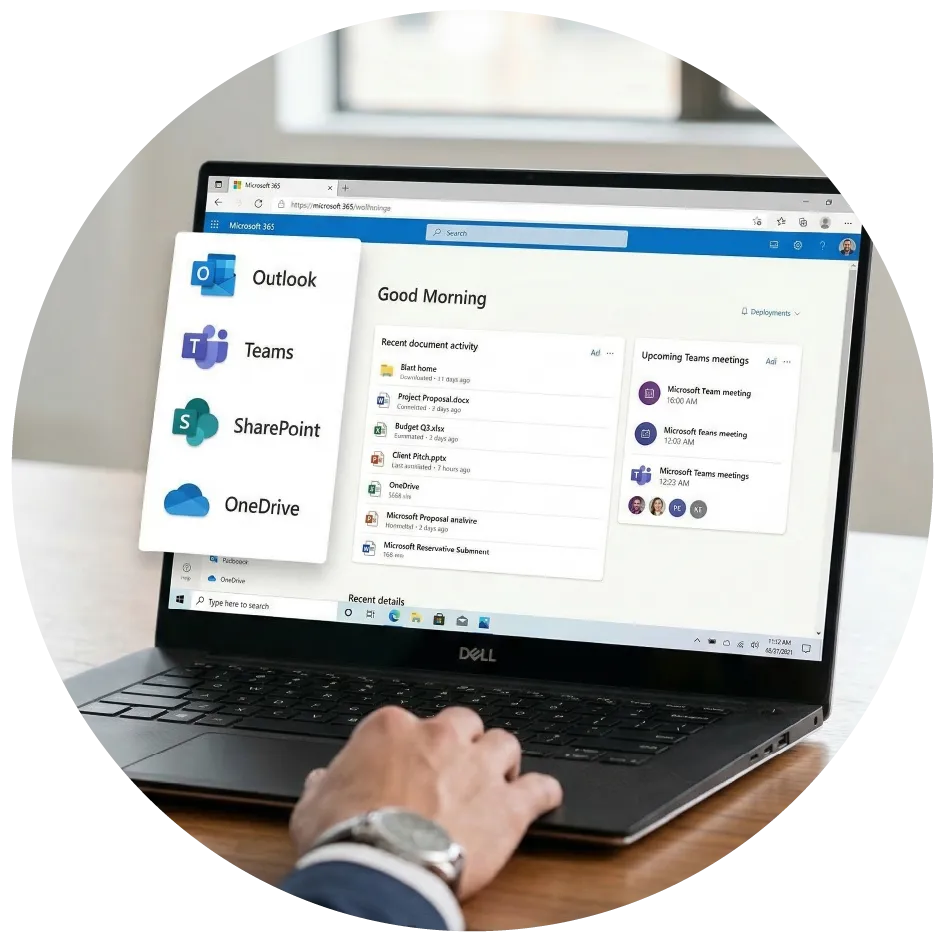
For teams using Microsoft 365 tools like Outlook, Teams, OneDrive, or SharePoint daily.

Outsourced IT Support
Simple, affordable monthly pricing for Microsoft 365 protection, backup, monitoring, and support from a trusted IT partner, without a full-time IT guy.

Sensitive Business Data
Can’t afford to lose or leak business data like customer information? Start with Microsoft 365 protection as a baseline step towards better Essential 8 practices.
How It Works
Step 1
Quick Onboarding
We set everything up properly with the right protection in place, or help make the transition from your ex-IT provider/MSP smooth and stress-free.
Step 2
Ongoing Protection
Backups run automatically. Security controls help stop threats and reduce risky configurations.
Step 3
Restore & Support When You Need It
Need an email, file, mailbox, OneDrive, SharePoint site, or Teams data restored? We handle it.
FAQs
Switching from another IT provider or MSP?
Already working with another MSP or IT support company? No problem. We can help make the move smooth, with minimal disruption to your team, email, and day-to-day work.
Reviewing IT costs or looking for a better deal?
Yes. We can review your current IT pricing and service inclusions, and where possible, match or improve the value to help reduce your ongoing IT costs.
Need more than this package includes?
No problem. Send us your current service details and bill, and we can review your setup. In many cases, we may be able to match or improve the service and overall value with a better-fit solution for your business.
Do I really need backup if I’m on Microsoft 365?
Microsoft 365 provides powerful services, but backup is typically treated as part of the customer’s responsibility under the shared responsibility model.
Can email security stop fake invoices and payment scams?
Yes. Advanced email security helps detect impersonation, spoofed domains, and suspicious payment requests.
Isn’t Microsoft 365 email already secure?
Microsoft provides basic protection, but advanced phishing and impersonation attacks can still get through without extra security layers.
What can be backed up?
Microsoft 365 data such as mailboxes and key collaboration workloads are commonly included in cloud-to-cloud backup coverage.
Can I search old emails for compliance?
Yes — email archiving is included in the bundle.
How fast can we get started?
Most tenancies can be onboarded quickly once access is approved.
What if my business doesn’t have Microsoft 365 yet?
No problem. We can help you choose, set up, and migrate to Microsoft 365.